Sunday, September 29, 2013

And ... Some Coins


a while ago i started to collect 2€ coins, first to get some of foreign countries, and second to get the special coins made for some events, but i can't find the box where they are... And so started a new one : 

Treaty of Rome first i found the Belgian edition of the Treaty of Rome : 


but i also have : 

Austrian edition
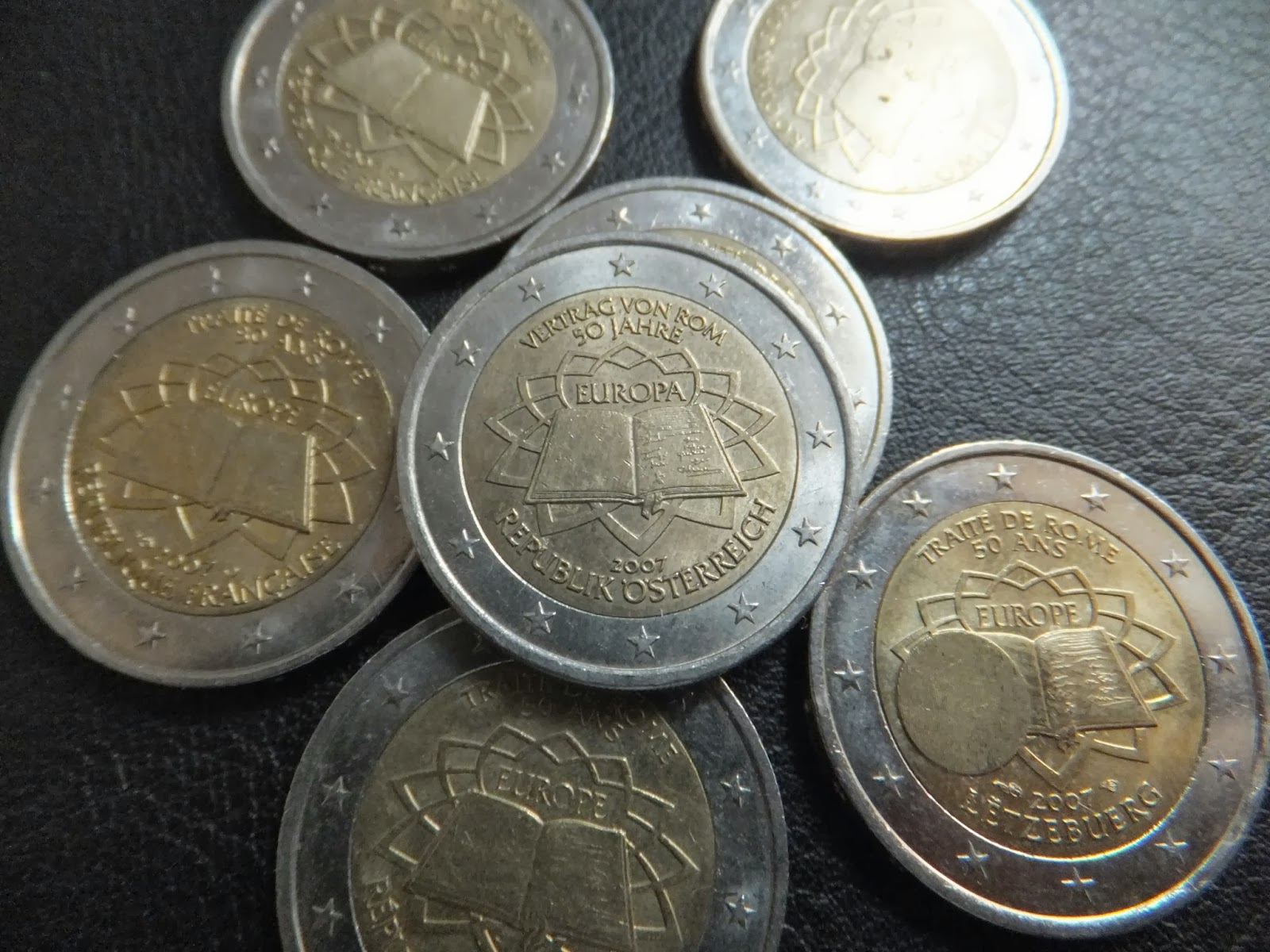
Luxembourg edition :

Finland edition : 


Spanish edition : 


German edition : 


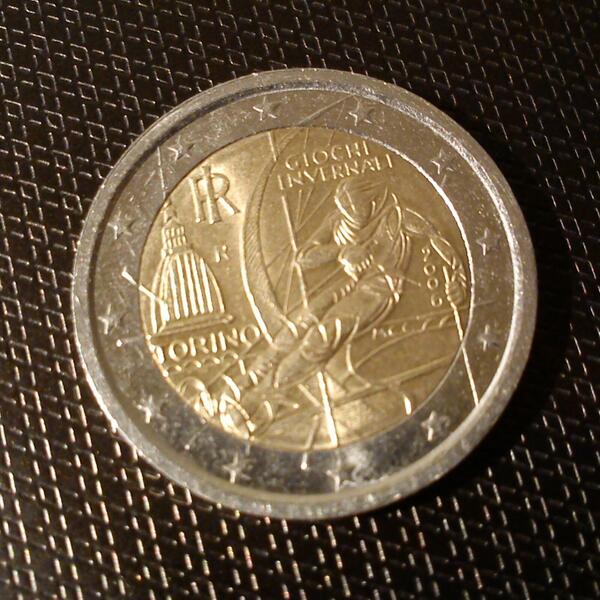
One about the 2006 Torino Olympic Games : 


The Elysée Treaty (50years) :


French edition : 

German edition : 


Appeal of June 18th : 

Euro ten years : 

French edition :


French and Austrian edition : 


"Fête de la musique" : 

2008, French presidency at UE :


UEM 1999 : 


AIDS International Day 2014 : 

DDay 1944-2014:


70 years of "peace" in Europe, 2015:


UEFA EURO 2016:

François Mitterrand 2016:


Auguste Rodin 2017:

World Food Programme, Italy, 2004:


Belgium-Luxembourg Economic Union, Belgium, 2005:


standard States coins : 

Cyprus :


Finland (1 and 2€) : 

Greece

i would need 2c and 1c coins to complete that country...


Malta (2€, 20c and 5c) : 


Slovenia (1€) :

Eire (Southern Ireland) : 


Austria : 

Monaco : 


Saarland limited edition (German coin, the Mint mark [A] indicates Berlin as origin) : 

Bayern limited edition (German coin, the Mint mark [D] indicates Munich as origin) : 


Monday, September 2, 2013

Editing PDF on Linux

Need to edit a PDF on Linux ?


There are a few softwares that can do the Job but...

Here was the Problematic : adding notes on a 215 pages PDF using a small and performance-less netbook

I first tried PDF import extension of LibreOffice (opened using Draw) two issues came out : 
  • importing the PDF destroyed most pictures
  • the 215 pages uncompressed for editing made the netbook lagging a lot

So I needed an alternative way
  • splitting the enormous pdf in smaller parts
  • using another program to add notes

  • Splitting using pdfmod :

installing
sudo apt-get install pdfmod

using

once the PDF was in a few smaller time it was time to add notes : 

  • Adding notes using flpsed

installing : 
sudo apt-get install flpsed

using
the look isn't fancy, but it does the Job : 

You may wait a lot for the file to open (mostly linked to pdf size and PC performance)

==> Then add notes, and export to pdf when the work is done ! 

Enjoy ;)
m@

PS: I'm still looking for better ways, feel free to share your own!


Monday, June 24, 2013

Customizing MDM

Customizing MDM : a few tips 

Considering we are on Linux Mint, we use MDM as Login Window, why won't we play with it?

MDM stands for "MDM Display Manager" this is a feature of Linux Mint, it has a menu for customizing the login window (but that's not enough ;) ) more info on Linux Mint website


default window is the following : 

first we can choose a new theme in the list :


We now have this login window : 


But hey! there is an issue, i can hardly read my login and password !

Let's fix it
open /usr/share/mdm/themes/Dark (since the choosen theme name is "Dark")
open dark.xml as root  :

and now let's edit what needs it ;) 
seek for this

change the color #d6d6d6 (light gray) to #000000 (black) or any color you would like for user -pw-entry : (For you, lazy guy, here is the exact line to edit) 

and now the theme is ready to use :D


enjoy ! 
m@

Monday, June 10, 2013

Customizing Xfce (5)


Playing with Xfce : part 5, Change Desktop Icon Text Color


Make sure to have a look to :

Today we wanted a dark Wallpaper,as a consequence, the black Icon text was unreadable...
As we still wanted to keep Mint-X theme, changing theme wouldn't help, but here is a way to only change Desktop specific icon text : 

find .gtkrc-2.0 and .gtkrc-xfce in your home folder (use ctrl+h to display these hidden files) if they do not exist, then create them :)

in .gtkrc-2.0 you should find 

(if you created the file by yourself copy-paste this : include ".gtkrc-xfce" )

in .gtkrc-xfce, you may find something like this : 
What you want is the following to get white letters when icon is unselected (we choosed white BG when selected so kept black font) : 

style "xfdesktop-icon-view" {
    XfdesktopIconView::label-alpha = 0

#background colors
    base[NORMAL] = "#C5C5C5"
    base[SELECTED] = "#C5C5C5"
    base[ACTIVE] = "#C5C5C5"

#foreground colors
    fg[NORMAL] = "#FFFFFF"
    fg[SELECTED] = "#000000"
    fg[ACTIVE] = "#000000"
}
widget_class "*XfdesktopIconView*" style "xfdesktop-icon-view"


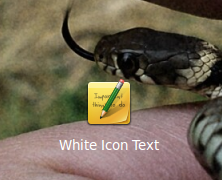
we now have a dark wallpaper and white icon text : 

Enjoy ! 


Thursday, June 6, 2013

Customzing Xfce (4)


Playing with Xfce : part 4, sensors plugin


Make sure to have a look to :


package : xfce4-sensors-plugin (needs hddtemp to work at full potential)
descriptionlets you monitor your hardware sensors, such as CPU temperature,hard drive temp, motherboard voltage, ...

overview in a few screen shots : 


NB : issues with hddtemp
if hddtemp is installed but the plugin notifies an issue, it might be due to permissions, fix them using the following:
sudo chmod u+s /usr/sbin/hddtemp

Enjoy !!

Wednesday, June 5, 2013

Customizing Xfce (3)


Playing with Xfce : part 3, Battery plugin


Make sure to have a look to :
package : xfce4-battery-plugin :
description : displays battery status (and time remaining) ; pops warnings at defined battery level, can run specified command at these levels...

it is possible to customize the bar colors : 

result : 

in order not to have duplicated battery icons on the status bar you may need do the following (it is better to keep xfce4-power-manager and xfce4-power-manager-plugins) : 


right click on the status bar : 

select notify plugin and click on the option icon : 

select power manager to be hidden : 


Enjoy !!


Monday, June 3, 2013

Customizing Xfce (2)


Playing with Xfce : part 2, Shortcuts


Make sure to have a look to :


Are you missing the quick start/search box of Unity or Cinnamon?
this allowed you to access to common apps pressing superL ("windows" KB button) and typing the begining of the app name to launch it.

This also exists in Xfce but you need more KB actions to get that box... (pressing superL, down, enter, down again, typing app name, enter, and enter)

that's why i decided to link superL directly to the box : 

seek for KB settings : 


this quick search box app is called xfce4-appfinder


as you can see it was also linked to <Alt>F3, but i didn't find it handy at all

Now pressing superL :


i linked xfce4-popup-applicationsmenu to Alt+F1 to get it with KB (in case touch pad dies or anything)


other apps i needed to shortcut : 

  • gnome-system-monitor linked to Fn+F9 (called XF86Launch1)
  • xfce4-terminal linked to Ctrl+Alt+T (called <Primary><Alt>t)
  • gtk-redshift -l <lat>:<lon> linked to <ALt>F7
  • xfce4-screenshooter linked to "Impécr/syst" (called Print)